Creating A Toggle Shortcode For WordPress FAQ’s Page

After finally releasing my first theme on Themeforest, the “Classy WordPress Business Theme”, I’ve decided to share some tutorials and the code for how I created some of the awesome features in the theme.
I won’t walk you through each and every step explaining every bit of code because its very easy to figure out, instead I’ll provide you with everything you need to cut/paste the shortcodes into your own theme (even better!)
The Toggle Shortcode
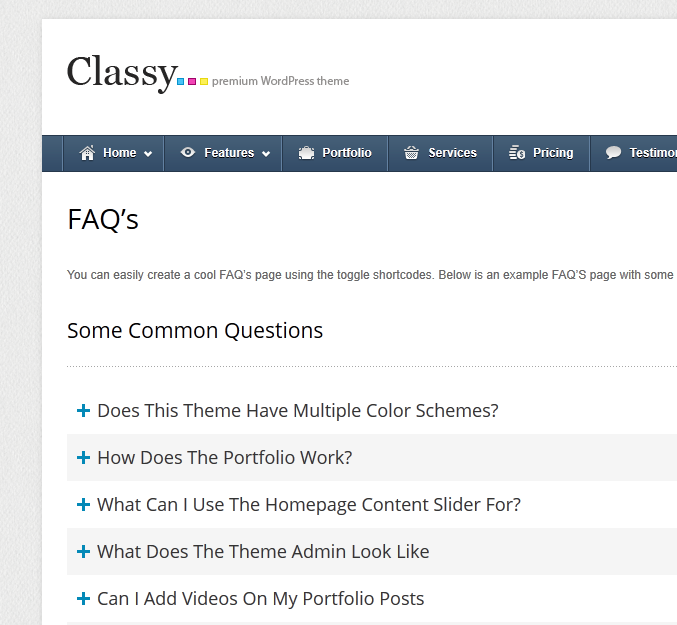
Creating the Toggle shortcode is very simple. All we need to do is add a shortcode function to our functions.php file that has 2 options: title and color. This way when you add the shortcode you can choose the title that you can click on for the toggle effect and the color so you can add various color options to your toggle, like you can see in my demo link above where I have added a white and gray style so people can create this alternating color effect.
Simply copy and paste the shortcode to your functions.php file:
// Register the toggle shortcode
function toggle_shortcode( $atts, $content = null ) {

	extract( shortcode_atts( array(
		'title' => 'Click To Open',
		'color' => ''
	), $atts ) );

	return '<h3 class="toggle-trigger"><a href="#">' . esc_html( $title  ) . '</a></h3><div class="toggle_container">' . do_shortcode( wp_kses_post( $content ) ) . '</div>';

}
add_shortcode( 'toggle', 'toggle_shortcode' );
The Toggle Javascript, CSS & Images
Below is all the code I used to create the toggles on my Premium WordPress Theme if you want to achieve the same look.
Javascript
Here is the Javascript. You can put this in your custom.js file or in the head of your theme.
Important: make sure you are already including the jQuery library as it is needed for the rest of the js to work 😉
jQuery( function( $ ) {
	$( document ).ready(function() {
		$( ".toggle_container" ).hide();
		$( ".toggle-trigger" ).click( function() {
			$(this).toggleClass( "active" ).next().slideToggle( "normal" );
			return false;
		} );
	} );
} );
CSS
Here is the CSS. Simply Place In Your style.css file
/*toggle*/
.toggle-trigger {
	margin: 0px !important;
	font-size: 18px;
	padding: 10px;
	padding-left: 30px;
	background-color: #F5F5F5;
	background-image: url('images/shortcodes/toggle-plus.png');
	background-position: 10px center;
	background-repeat: no-repeat;
}

.toggle-trigger a {
	color: #333;
	text-decoration: none;
	display: block;
}

.toggle-trigger a:hover {
	color: #0489B7;
	text-decoration: underline;
}

.toggle-trigger.active{
	background-image: url('images/shortcodes/toggle-minus.png') !important;
	background-position: 10px center;
	background-repeat: no-repeat;
}

.toggle_container {
	overflow: hidden;
	padding: 20px 10px;
}
Images
Below are the two images for the shortcode. Simply right-click and hit “save image as” to save the images to your theme’s images folder.


Using The Shortcode
Now that you have added all the code required for the shortcode you can easily insert your toggles to your site just like this:
[toggle title="Your Toggle Title" color="white"]Toggle Content[/toggle]Too Lazy? Get The Theme!
Click on the picture below to checkout my premium theme and buy it. 🙂




Your PHP code is very much broken. I tried it twice (edited it once trying to fix it) and my site broke each time to a very scary HTTP Error 500 error :/
My code is fine…As I’ve mentioned in the post it’s the exact same code I use on a theme which is currently working just fine. Double check your code make sure nothing got cut/pasted improperly.
HTTP Error 500 is actually an internal server error – so that shouldn’t even be related to the shortcode.
you forgot to add the toggle_container to the div class where the content is supposed to show/ hide the text.
Seems like WordPress stripped out the class from the post editor. Thanks for that 😉
Seems like the function isn’t attaching the color schemes or the title attribute. I also had to modify the function so it added the “trigger” class, since it wasn’t doing so automatically. You can see the implementation of such things.
Not sure what you mean by the color schemes…this is an older post that probably needs some reviewing. Have you seen our plugin?
Sorry for the late response, I thought that I would automatically get a notification when the thread was responded to like many other WordPress comments.
Essentially I meant how to create a “zebra” effect, of alternating colors between white and grey, it wasn’t quite doing that. you know, for something like color=”white”
Because of this, I created some CSS rules so that it does automatic zebra striping according to whether the toggle element is even or odd. Also, instead of using the plus or minus symbols, I thought it would be more robust to use a icon font for this. For reference, you can find my CSS code below.
However, after upgrading to WordPress 3.5 today, it appears that the JavaScript doesn’t work anymore unfortunately.
/*toggle*/ h3.trigger { margin: 0px !important; font-size: 18px; padding: 10px; } h3.trigger span:before { content: "\e02a"; font-family: 'icomoon'; font-style: normal; speak: none; font-weight: normal; -webkit-font-smoothing: antialiased; padding-right:10px; } h3.trigger a { color: #333; text-decoration: none; display: block; } h3.trigger a:hover { color: #0489B7; text-decoration: none; } h3.trigger.active span:before { content: "\e02b"; font-family: 'icomoon'; font-style: normal; speak: none; font-weight: normal; -webkit-font-smoothing: antialiased; } h3.toggle-white{ background-color: #FFF; } h3.trigger:nth-of-type(odd), h3.trigger:nth-of-type(odd) + div.toggle_container { background-color: #F5F5F5; } h3.toggle-gray{ background-color: #F5F5F5; } .toggle_container { overflow: hidden; padding: 0 25px 20px 40px; } h3.toggle-gray + div.toggle_container{ background-color: #F5F5F5; } h3.trigger + div.toggle_container p:last-of-type{ /*I use this, because if a toggle_container only contains 1 paragraph, it won't actually create a "p" to surround it, but if there's a couple, it will. This removes the extra padding on the last paragraph */ margin-bottom: 0; }Thanks for this bit of code. I wanted to use it for a simple needy-“read more” link and make the text magically show option and it did the trick. I just had to modify the code a bit and don’t plan on using the theming colors.
Sorry for the unprofessionalism in coding,
What do you do with the code?
For the Javascript where should I put it?
I don’t quite understand that part
Thanks in advance .
It should go in a js file inside your theme, then you use the wp_enqueue_script function to load it.
Exactly what I was looking for to get some nice toggle action happening, cheers!
Thank you very much AJ Clarke, this script is exactly what we were looking for.
Your links for samples are broken but the shortcode rocks.
Thanks very much for this shortcode tutorial, I have used it on a client’s site now and have also adapted it slightly so setup a tutorial on my blog too, based on your information.
Hello Clarke,
Is it possible to add some class or function to your Symple Shortcodes, which keep the first toggle open? Other functionality should remain same.
The most recent version of the shortcodes plugin allows you to add class=”” to the parameters so you can give any shortcode it’s own classname. You should be able to easily create a class for example called open-toggle and use it in the shortcode class=”open-toggle”, then with some CSS make it so that it’s closed by default.
Noob that I am I have no business posting here or perhaps even trying to implement this thing. However … I really want it:-)
Believing I’ve followed directions the actual function appears to behave like an anchor, sending me on click to the top of my page. Again I’m completely and totally NOT a coder I’m following along to the letter with only one exception and that was a change to the file path in the CSS since the instructions said to put plus/minus in images and the directions seem to outline a subfolder called shortcodes. Otherwise I’m to the letter.
I did however put my js inside header.php as I couldn’t find custom.js and I surely don’t understand calling enqueue.
Hey Gordon,
This post was intended for developers, which is why it doesn’t go into further details on everything. Sounds like your Javascript isn’t working, make sure jQuery is loaded on the site and if possible check for console errors in your browser to troubleshoot.
If you aren’t a developer, why not use a plugin for your toggles? Our Symple Shortcodes plugin has toggles built-in.
Valid points AJ, thanks. We’re all developing something or another though aren’t we:-)
I’ve deployed the plugin, mostly due to befuddlement, and it seems to meet the need, though I fancy keeping the build lean when possible.
Appreciate a prompt reply. The Internet: a place where anyone can wander in anywhere.
Glad it will work out for you! And because the plugin will only load the javascript as needed your site should still be “lean” 😉
Have a great weekend Gordon!
Hello Calrke , I want to use Symple Shortcode plugin for toggle effect in my website but toggle effect should work on Button click i.e when I click on “Readmore Button” all the content could be shown , how can I do this? Please help
Thanks ,
Hemant
You don’t need a shortcode for this, you need custom javascript added to the site and if you aren’t sure how to do that you will have to hire a freelance developer to assist you.
Hi Clarke, Your code for toggle is very simple and clean. Which is why I loved it.
A request: how to make this toggle remained open on page load. Normally the content is hidden.
Remove the line in the js that says:
$(".toggle_container").hide();I add all on my theme, but not works…Please, create new tutorial how to add toggle.
Thanx
Make sure you have added the javascript and that jQuery is loaded properly on the theme. If you can share your theme code on another site such as Github I can take a look for ya. But maybe you should have a look at our Symple Shortcodes plugin which includes a toggle module already built-in.
This is my website: iphone-otkljucavanje.com/cesto-postavljana-pitanja-iphone-srbija/
I add toggle.js via function.php and not work…
iphone-otkljucavanje.com/wp-content/themes/icloudimeiunlock/js/toggle.js?ver=4.3.1
Sorry for the super late reply! Looks like you are using the symple shortcodes plugin now? Awesome! I hope you like it. And maybe in the future you may want to check out our popular drag and drop WordPress theme “Total” to really take your site to the next level 😉