How to Speed Up WordPress: A Comprehensive Guide

Welcome to the only guide you need to speed up WordPress. We’ve crafted this step by step guide to outline the best tool and practices for you to adopt to speed up WordPress on your website.
A Guide to this Guide
We’ve split this guide into a couple of sections so that it’s easier for you to follow or catch-up, if you’re reading midway.
- First off, we’ll talk about why being a speedy website matters. We’re pretty sure you’ve read about this tons of times, but nevertheless there might be someone who hasn’t – and this is exactly for that someone!
- We’ll also cover the underlying technology. We at WPExplorer believe in understanding the reason behind a problem is the best way to solve it. That’s why in the past, we’ve written guides like Beginners’ Guide to WordPress’ Internal Functioning which attempts to give a basic understanding of how a few thousand lines of code can power almost 46% of the websites on the Internet. This section deals with the prime factors that affect your speed and general performance. Read this bit carefully, since with each factor, we’ll discuss the best practices.
- We’ll then talk about performance fixes and optimization that applies to WordPress themes and plugins.
- For the remainder of the guide, we’ve grouped the fixes by category like image optimization, database optimization and security fixes. We believe this categorization would help you understand and grasp the gist of the fixes faster – so you can get up and running in no time.
Okay let’s take a breath! We’ve finished the prologue. Now let’s get started with the actual guide to speed up WordPress.
Table of Contents:
Here is a quick table of contents for the actual tips on speeding up your site. This way you can skip the whole section on the importance of page speed, quickly scroll-down to any section in this guide or even bookmark a specific section if you want to come back later:
- Why Page Speed Matters
- Underline Technology
- Easy Tips to Speed Up WordPress
- The Client Device
- WordPress Extensions: Themes and Plugins to Speed up WordPress
- Image Optimization
- Database Optimization
- Security Fixes
- Conclusion
Okay let’s take a breath! We’ve finished the prologue. Now let’s get started with the actual guide to speed up WordPress.
Why Page Speed Matters

I’ll try to keep this short. We all know that everyone likes a speedy website. You’ve also probably heard that Google nowadays prefers a fast website over a slow one – which means that a faster website yields better SEO scores. Although there is no definite explanation over this, most videos and interviews tend to point to this plausible explanation.
People search for things they need immediate answers to. So a top hit must load quickly. Google simply cannot put a slow site upfront as it would make a poor search experience.
Imagine the first page in a Google SERP taking 10+ seconds to load – chances are you’ll leave the site before 5 seconds of waiting.
Studies have shown that for every one extra second added to your website’s loading time, you lose out on 7% conversions, 11% page views and an overall 16% decrease in customer satisfaction. Club all of that into one sentence you get this –
Decreasing your website’s load time by 1 second could earn you an easy 7% increase in profits.
I hope we were able to convince you because that’s what we’re going to get. Let’s get started with the actual guide to speed up WordPress.
Underlying Technology
What makes a website slow? And why would you need to speed up WordPress? The answer to that question is lies in a multitude of factors – the most significant of which we’re going to discuss below.
Static vs Dynamic Websites
This comparison is best explained with a painter/photographer analogy. To support our example, let’s assume that both of them are asked to show a photo of a cat. The painter must always draw the picture, whereas the photographer can simply show you the photograph of a cat he clicked.
Who do you think will win in a “show me a picture of a cat ASAP” contest?
It’s the same with static and dynamic websites. In static websites, the resource – or the photographer’s picture of the cat – is always present. One simply needs to open it to view it.
However, in the case of a dynamic website, the website needs to be generated every time someone wants to view it – similar to the painter, who needs to paint the photo of a cat every single time! This tells you that static websites are inherently faster than dynamic websites.
Static websites are inherently faster than dynamic websites.
A content management system – like WordPress – falls under the category of dynamic website generators. It is a software is designed to create and maintain a website with an admin panel for managing activities. Activities like adding a new post, page, etc.
Most people choose WordPress over static websites. It’s a good trade-off.
All the data is saved in a database server (an example of which is the popular MySQL server) and the media files (such as images and documents) being saved in the web server itself.
On the flip side, dynamic websites are a blessing to mankind. Imagine having to manage 1000s of posts, pages, tags, categories and media files. Managing them individually would drive a person crazy.
That’s why most people choose WordPress over static websites. It’s a good trade-off.
Easy Tips to Speed Up WordPress
Now for the fixes. You can use these easy tips to speed up WordPress on a variety of hosts without a hitch.
1. Enable WordPress Caching
WordPress caching is simply “saving a result for future use”. WordPress generates a webpage dynamically, each time a visitor requests for a page. What if it were to save such a dynamically generated page and serve it to the next visitor without having to generate it again? This would result in a much faster page load time.
This process is called caching and WordPress uses this technique in multiple places of its internal functioning. You can also enhance the level/amount of caching of other WordPress processes, using a caching plugin like W3 Total Cache, WP Super Cache or WP Rocket.
2. Enable Gzip Compression
This is a simple compression technique that reduces the size of data to be transferred – hence increasing the speed. The caching plugins mentioned earlier will allow you to enable Gzip compression. For example, you can enable Gzip compression in W3 Total Cache under the Performance > Browse Cache option.
3. Upgrade your PHP Engine
WordPress runs on PHP, which means it relies on PHP to execute its code to generate web pages. PHP is an open-source software that’s installed alongside webservers. The version of the PHP engine plays a tremendous role in determining your WordPress website’s performance.
The folks over at Kinsta Managed Hosting performed a benchmark of the PHP engines on WordPress 4.3.1 and this is what they found:
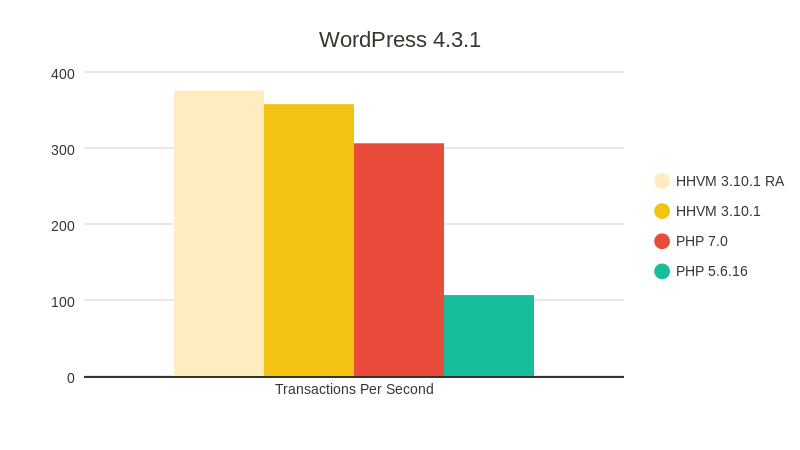
PHP Benchmarks on WordPress 4.3.1. Source: Kinsta.com
| # | PHP Engine | Transactions/second |
| 1 | HHVM Repo Authoritative | 375.48 |
| 2 | HHVM | 357.69 |
| 3 | PHP 7 | 306.24 |
| 4 | PHP 5.6.16 | 106.45 |
The results are staggering. If you compare PHP 7 and 5, you’ll see a huge difference – PHP 7 is 187% – almost 2x – faster than PHP 5.
PHP 7 is 187% faster than PHP 5
HHVM is a PHP engine developed by Facebook. Only a handful of webhosts offer this engine since and it usually comes with a stiff price tag. However, PHP 7 is relatively simple to implement. Most shared hosts don’t go through the trouble of upgrading to PHP 7.
Upgrading also has a slight downside – a few old, highly inefficient functions are deprecated – meaning they aren’t supported anymore. If your WordPress theme were to use such functions, the PHP engine would encounter random errors.
That being said, most best WordPress themes don’t have this trouble. If you want to upgrade your PHP version to speed up WordPress, you’ll likely have go to have to manually make a request. The best WordPress hosts proactively do this for you. Which brings us to our next topic.
4. Choose your Hosting Wisely

Almost everyone reading this article probably knows the difference between a shared host, a VPS and a dedicated host. Let’s take a look at the new types of hosting.
WordPress Optimized Hosting – these are like revamped shared hosting plans fine-tuned for WordPress. This means that the server environment is optimized and ideal for hosting WordPress. But the resources are still shared which means under heavy traffic, the website might fail. This is a great hosting choice for new WordPress blogs/websites.
Managed WordPress Hosting – This is the absolute best of WordPress hosting. Hosts like WP Engine and Flywheel take care of each and every aspect of your hosting – right from server optimization to creating a list of disallowed plugins which is why we think they the best WordPress hosting option. The use the most advanced combination of caching technologies, PHP engine, web servers, CDNs, backup software and a whole lot of other amazing stuff to deliver the absolute best hosting experience – which remain steady even during traffic spikes. This is great for medium/high traffic websites.
WordPress Cloud Hosting – there is another genre of hosting which leverage the infrastructure of cloud providers like Amazon AWS, Google Cloud and Microsoft Azure to host WordPress sites. What this means is that your WordPress site will be hosted on the cloud and the installation/configuration part will be done by the company. This is an excellent choice for people with cloud hosting experience or who want to take it up. CloudWays is one such company which hosts WordPress in AWS and Google Cloud. Check out our review of CloudWays for more information.
Of course, the cost of these hosting plans are anywhere between 20 to 70% greater than their traditional counterparts, but the returns are just as fruitful since the extra features and resources go a long way towards your goal to speed up WordPress.
5. Pick an Optimal Server Location
A server’s physical location plays a major role in the loading time of a website. If most of your visitor are from New Jersey, it wouldn’t make sense to pick your server in a datacenter in Singapore, 9500 miles away. While this would not make much of a difference to a single file of 1GB; it would make a tremendous impact on 100 files on 10MB each. Therefore, pick a server location closest to your target audience.
6. Use a Content Delivery Network

A CDN is a direct extension of the server location concept. Its aim is to replicate your WordPress site’s data (media files, CSS and JS files) across multiple servers across the globe. These replication locations are called Points of Presence of POP. The larger the number of POPs, the better the CDN network. We recommend starting with a cost-effective free CDN first, then upgrade your plan if or when you need more resources.
The Client Device
In a world where there’s more Google searches in mobile than desktop, it’s a fair assumption that a good part of your users come from mobile devices. The growing importance of client devices are due to the fact that web developers are deferring some of the processing load on the client’s browser.
This means when working to speed up WordPress your mobile user experience should be just as important as the desktop. Your theme might be responsive – but does it function smoothly in in mobile view?
7. Optimize your Mobile View
How does it function in an older device? While Apple might be launching a new iPhone every September, a lot of folks still use a 4-year-old iPad – does your website work well there?

iPad usage breakdown. Source: david-smith.org
You might have heard of a term “graceful degradation”. Although it may not apply to WordPress, it is good to have an idea. It basically means serving a stripped down version of your website to devices which cannot handle the heavy, feature-rich version. It enables users with old/legacy devices to view the most important bit of content without the “toppings”.
A classic example is the BJ Lazy Load plugin which uses JavaScript libraries to show images only when it’s visible in the viewport. If a browser does not support JS or has it disabled, the plugin gracefully degrades – i.e. it stops its main function and loads the images normally.
Check out these mobile optimization plugins to get a fluid mobile site.
WordPress Extensions: Themes and Plugins to Speed up WordPress
The concept of themes and plugins have significantly contributed to WordPress’ popularity as a CMS. While most of the popular plugins and themes follow best development practices, there are some which don’t. Let’s discuss a few examples where development practices affect WordPress site performance.
8. Choose your Theme Carefully

The top selling Total WordPress Theme
When it comes top premium WordPress themes, you need to tread carefully.
Pirated Themes? Absolutely not. There It’s no secret that you can obtain a pirated copy of the latest version of a bestselling Themeforest theme – rather easily I might add. But here’s the catch – there are high chances that the pirated theme has malicious scripts embedded in them, which is invisible to even an advanced user. Only trained developers with years of experience can detect such scripts. Malicious scripts are designed to steal your customer’s data (credit cards, emails, addresses, etc.), inject malicious files to your visitors and use your server to send out spam emails, among other activities. Before you know it, you’re banned from Google, and your reputation and credibility has plummeted.
Well Designed Themes? Yes. How do we define a good theme? Is it the design? The typography? Or is it the responsiveness? The list goes on. Fact is, design is a highly subjective matter. It communicates your brand’s image to the audience. We leave that to your judgement.
We want to tackle the technical aspect of a well-designed theme. It should:
- Be lightweight – the smaller the theme, the faster it loads.
- Have fewer requests – smaller the number of requester, faster the site loads. It also reduces the effect of distance between server and visitor.
We compared the Parallax Pro theme from StudioPress and our very own Total theme. Here are the number of requests in each.
| Theme | No. of Requests | Load Time | Perf. Grade | Pingdom Result |
| Parallax Pro | 19 | 1009 ms | 75 | Link |
| Total | 21 | 506 ms | 87 | Link |

Benchmark Result for the Parallax Pro theme from StudioPress

Benchmark Result for the Total Theme from WPExplorer
The Total theme was hosted on WPEngine’s superfast managed WordPress hosting environment which gave it a 50% lesser loading time and 12-point higher performance grade.
Tools of the Trade

- You can use Pingdom to measure the number of requests your WordPress theme uses.
- The Theme Check plugin can verify whether the active theme is adhering to the best practices.
9. Use the Right Number of Plugins
The right plugin can extend the feature set of WordPress to incredible heights. On the flip side, too many plugins can impact performance. Think of it as installing too many apps on your phone. It drains the battery faster and slows your phone down over time.
- Plugins like Theme Check or a plugin to reset WordPress are used once in a while – then why keep them activated forever? Activate – use – deactivate. That’s the plugin philosophy performance enthusiasts should be following.
- The P3 Performance Profiler plugin that made it to our essential WordPress plugins list, measures the performance impact of the active plugins in your WordPress site. Keep deactivating your plugins until you reach a stage where deactivating even a single plugin will break down a component of your site.
10. Get Rid of the Fluff
This could mean a number of different things to different people. We have seen that a lot of these websites appear way too cluttered with gorgeous design elements. But people who are regular visitors generally don’t care for this stuff – and sometimes it might be unpleasant to see the same time-consuming design effects take place over and over again.
From the performance standpoint, these design effects add to the number of scripts to be loaded along with the theme – which in turn, increases the loading time.
Image Optimization
You might have read about optimizing images for the web – like compressing them or saving as progressive JPGs. Kraken.io and TinyPNG are excellent tools for that purpose. But you can do more.
11. Shrink all Images

But what about the tons of images that are already uploaded? That’s where the image optimization plugins come in handy. They scan and optimize your image library and take care of all future image uploads – so you don’t have to do them manually. Examples include Smush Image Compression or the EWWW Image Optimizer.
12. Defer Image Loading

We’ve mentioned the BJ Lazy Load plugin earlier in this guide. You can defer the loading of images only when they are visible in the viewer’s viewport. In other words, the image will start loading only when the visitor scrolls down to view it. This has multiple benefits:
- First, it reduces the number of initial requests – be deferring the image requests when needed
- The size of the page decreases, which results in faster loading time
- Deferring the images saves bandwidth for both the visitor and the server.
13. Disable Image Hotlinking
Remember freeloaders? Well hotlinking is like freeloading. People who hotlink to your site simply paste the URLs on their website. The image is displayed on their end, but the bandwidth cost is borne by you.
That’s a double loss right there – you pay for the bandwidth and don’t get any visitors in return. Here’s how you can prevent image hotlinking to help block third parties and in turn speed up WordPress.
14. Define Image Sizes
You theme has a predefined maximum image width for every screen size. It is rather inefficient to serve images greater than the maximum resolution. You can manually set multiple sizes of your images with the add_image_size() function. When an image is uploaded, WordPress will make multiple copies of it in different sizes – one for thumbnail, post icons, etc.
Database Optimization
Just like your images, it’s important to optimize your site database if you want to speed up WordPress.
15. Optimize your WordPress Database
Over time, your website gets crowded with non-essential stuff. Like data from deleted plugin metadata, past theme changes and post revisions. This could leave hundreds of rows in the database unattached to any element. The WP-Optimize plugin does a fairly good job of cleaning up the WordPress database of such unnecessary elements (which in turn will speed up WordPress on your site).
16. Limit Post Revisions
While I prefer to use Microsoft Word or Google Docs for writing articles, a lot of us prefer the good ol’ WordPress Visual Editor. WordPress automatically saves multiple revisions of each post so you don’t lose your work when the Internet breaks. However, that has a slight disadvantage.
Every long post is bound to have multiple revisions. These keep cumulating and ultimately increases the database size. Ironically, you won’t be needing these post revisions in the future. Therefore, you can limit the post revisions to – let’s say 3 – and save up space in the database.
To limit post revisions, simply paste the following code in your wp-config.php file.
define( 'WP_POST_REVISIONS', 3 );
17. Empty Trash More Often
While WordPress empties the trash every 30 days, you could set the purge limit to 7 days and keep to keep your database nice and squeaky. Again, paste the following code in your wp-config.php file:
define('EMPTY_TRASH_DAYS', 7);
18. Ensure Efficient Database Calls
First of all, developers must avoid raw database queries in WordPress. There are legions of functions at your disposal to get everything from posts to comments, custom taxonomies and metadata.
However, if a developer must query the database, he should do so using the WPDB class, for maximum efficiency. Complex, resource intensive functions like table joins should not be done on the database as it would negatively impact performance. In many cases it is better to use two separate but far faster queries.
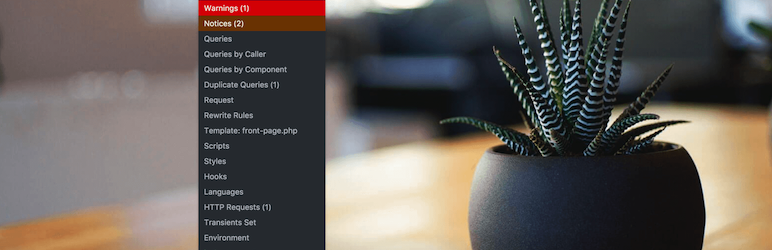
There are tons of tools such as Query Monitor to figure out if your queries are well written, and to see all queries run during a request. IMPORTANT: This plugin is VERY resource intensive and on it’s own can and will likely slow down your site, so make sure to ONLY activate the plugin during testing and de-activate it when you are not specifically doing tests. You should also be looking at the results from the plugin when making your checks as opposed to testing live loading times since the plugin will slow things down overall on the site.
Security Fixes
The three fixes described in this section have a security and a performance impact on your website when trying to speed up WordPress.
19. Prevent Brute-Force Attacks
Attacks can come from anywhere at any time. It is your duty to hold a safeguard against them.
- Good Hosting companies already limit the number of failed login attempts from a user. For example WP Engine can identify when a bot is trying to login and will automatically return an empty response to prevent future attacks.
- All-In-One WordPress Security and Firewall plugin is a comprehensive security suite for WordPress with various security features for new and existing users. The plugin deals with multiple vulnerable aspects of your site and ensures strict security is enforced among them.
20. Eliminate Spam

Spam is a major concern for websites. Spam overloads your WordPress database and decreases your credibility as a webmaster. It needs to eliminated for good. While there are a ton of great plugins, the ones that stand out are Akismet and Anti-Spam Bee, amongst others.
Conclusion
While it is important to optimize you site to peak performance – it is important to remember that speed isn’t everything. While it is certainly worthy to spend money and decrease the loading time from 5 seconds to 2 seconds – it would not be optimal to spend double that amount to further decrease the time to 1.8 seconds.
Speed is important…but it isn’t everything!
Rather, that money could be better utilized in a promotional campaign. Let’s not forget – the ultimate goal of performance improvement is to gain more conversions.
This concludes our guide to speed up WordPress – thanks for reading and kudos on reaching till the end! As always, if you feel that a fix belongs up in this list – please let us know and we’ll have it up there in no time. But for now, we hope you can use the tips we’ve listed to speed up WordPress on your sites!




In general a good article. However, you might want to check the plugins you’re advising. Hammy hasn’t been updated for over two years.
I installed all plugins and using cdn too.. but my site is still slow 🙁 What can I do?
You may have issues with your webhost I would recommend reaching out to them or switching to a better host.
Im using wp super cache plugin. Its very effective. You can add it to the list. Thanks for article.
Yes, WP Super Cache is great! We do mention it already in the “Enable WordPress Caching” section 😉
Do you know any plugins, which speed up not only front-end perfomance but also optimize google-related plugins (like google analytics).. It makes the google insight score of our website lower..
Your site speed “score” is useless. I would recommend using a site like GTMetrix instead and looking at the “waterfall” to see what is actually slowing down your site. The Google insight score is pretty much useless. You could have a site that has a score of 20 but load in 0.1 second or a site with a score of 100 that loads in 5 seconds. Actual speed is what matters. Don’t worry too much about the scores 😉
Most of the time your site speed depends on your webhosting so the first thing you want to do is make sure you are using a Good WordPress Host. There isn’t any “magical” plugins that will speed up performance of your plugins but you can use the Plugin Performance Profiler to see what plugins might be slowing down your site.
Good job Sourav. You have listed most of the things which are responsible for your site’s loading speed. But most common problem is choosing poor web hosting provider.
Definitely! Using a good WordPress hosting company is step #1 in ensuring a fast site. In fact you could do every single small tweak and adjustment to get a 100% speed score on Google PageSpeed Insights but if your hosting isn’t good then your site will still be slow.
Great ideas in this article
1693 Shares for one article made me read this article thoroughly. I was curious what is unique in this article. So I went on reading this article. I really found the article useful I would highly recommend anyone who is visiting on this blog would read the article. If one really wants to gain something.
Thank you for this article, right when I needed it! Speed and reliability are the most important factors to rank your website into higher positions on search engines.
I was just facing this kind of issue thanks for your help. Keep it up
Thank you so much for this article. This helped to increase my site speed.
Well website loading is seriously a big factor in viewing a website and if it takes time for a website to load i really loose temper as a user and as an owner of a website we really should look at this post which has strong points in support of the strategic steps to uplift your website.
Great tips here! It’s incredible how many methods & plugins exist to help solve problems that WordPress website owners face. A great tip I personally found to speed up WordPress was removing unused Javascripts which WordPress adds to the header and the footer. This sped my site up significantly, especially removing Jquery since I wasn’t using it on my site anyway.
Great tip, Wpexplorer site loads amazingly fast just like the files are on local machine. Great work guys 👏
Thanks! A good hosting plan, caching and a few onsite optimizations make all the difference!
Cool, Kyla.
I guess you could reduce the caching period. I’m seeing the comment live on website after a week, while I got the response in a day or two. Just a feedback, as it might help in more interactions on site.
I am using Litespeed Webserver With LsCache wp Plugin in my webdite. This plugin just amazing it increase my site speed. I will definitely suggest everyone try this plugin for at least one time.
Just wanted to add in a shout out to Tinybeest (tinybeest .com). It a very handy image optimizer desktop app and chrome extension. Check it out!
Thanks for sharing the wonderful blog. The important thing is to Pick a suitable hosting plan for your WordPress website.
Yes – I agree that is the #1 thing!